Business cards are still useful, but the way people exchange contact information is changing. Now you can share your phone number, email, website, social profiles and more with one simple link. That is the reason why many professionals prefer to Create Digital Business Card instead of only relying on printed cards.
Digital cards are easy to update, share, and access from a smartphone. There’s no need to carry a stack of printed cards to every meeting or event. Create Digital Business Card With the right platform, you can do it in a few simple steps.
In this guide, we’ll show you how to create one, what to put in it and how to use it to network better.
What Is a Digital Business Card?
The digital business card is an electronic version of a traditional business card. You don’t hand someone a piece of paper, you share a link, QR code or NFC tap.
Your card could include:
- Your name and job title
- Phone number
- Email address
- Company website
- Social media profiles
- Business location
- WhatsApp link
- Portfolio
- Company information
Best of all, you can update your details without having to print a new card.
Why Should You Create Digital Business Card?
There are a few reasons why professionals are moving to digital networking.
Easy to Share
You can share your card via WhatsApp, email, text messages or social media. In an in-person meeting, you can also display a QR code.
No Printing Needed
If you change your phone number, job title or company details, you must reorder printed cards. You can update a digital card online.
Better for Networking
A digital business card allows you to combine multiple contact options in one location. The person doesn’t have to search for your website or social profile separately.
Works Beyond a Meeting
A physical card can be lost. You can save a digital card on your phone and open it whenever you need to access the contact.
What Do You Need Before Creating Your Card?
Gather the information you want to display before you create your digital business card.
Get ready:
- Full name
- Professional title
- Company name
- Phone number
- Business email
- Website
- Profile photo or company logo
- Social media links
- WhatsApp number
- Business address, if needed
Keep your information up to date. Old phone numbers and broken website links on a card can be a poor experience.
Step 1: Choose a Digital Business Card Maker
Step 1:Pick a good digital business card maker.
Look for a platform that makes editing easy, and has helpful sharing options. No advanced design or coding skills required.
A good platform should enable you to:
- Build your profile fast
- Add your contact details
- Add social links (links to social networks)
- Share your card via a link
- QR Code
- More info to be updated later.
- Make sure the card is mobile friendly
Tapect provides digital business card solutions that make it easy to share contacts and network professionally.
Step 2: Add Your Basic Information
Once you choose a platform, fill out your basic information.
Start with your name and professional title. Then add your company name and contact information.
Don’t stuff the page full of information people don’t need. You want to make it easy for someone to understand who you are and how to reach you.
For example:
- Jayesh Makwana
- SEO Executive
- ABC Digital Solutions
- Phone: +91 XXXXX XXXXX
- Email: example@email.com
Below these basic details you can add more information.
Step 3: Add Your Website and Social Profiles
Your digital card is more than a way to share your phone number.
Include links to your work-related platforms, such as:
- Company website
- YouTube
- Portfolio
This is one reason why an Online Digital Business Card can be more useful than a regular printed card. People can get a taste of your professional presence from one page.
Step 4: Add a Professional Photo or Logo
A good photo can help people remember who they met. If it’s a company card, you can use the company logo.
Pick a clean image that looks good on a mobile screen.
Avoid using:
- Blurry photos
- Very dark images
- Distracting backgrounds
- Unrelated pictures
Keep the design professional and simple.
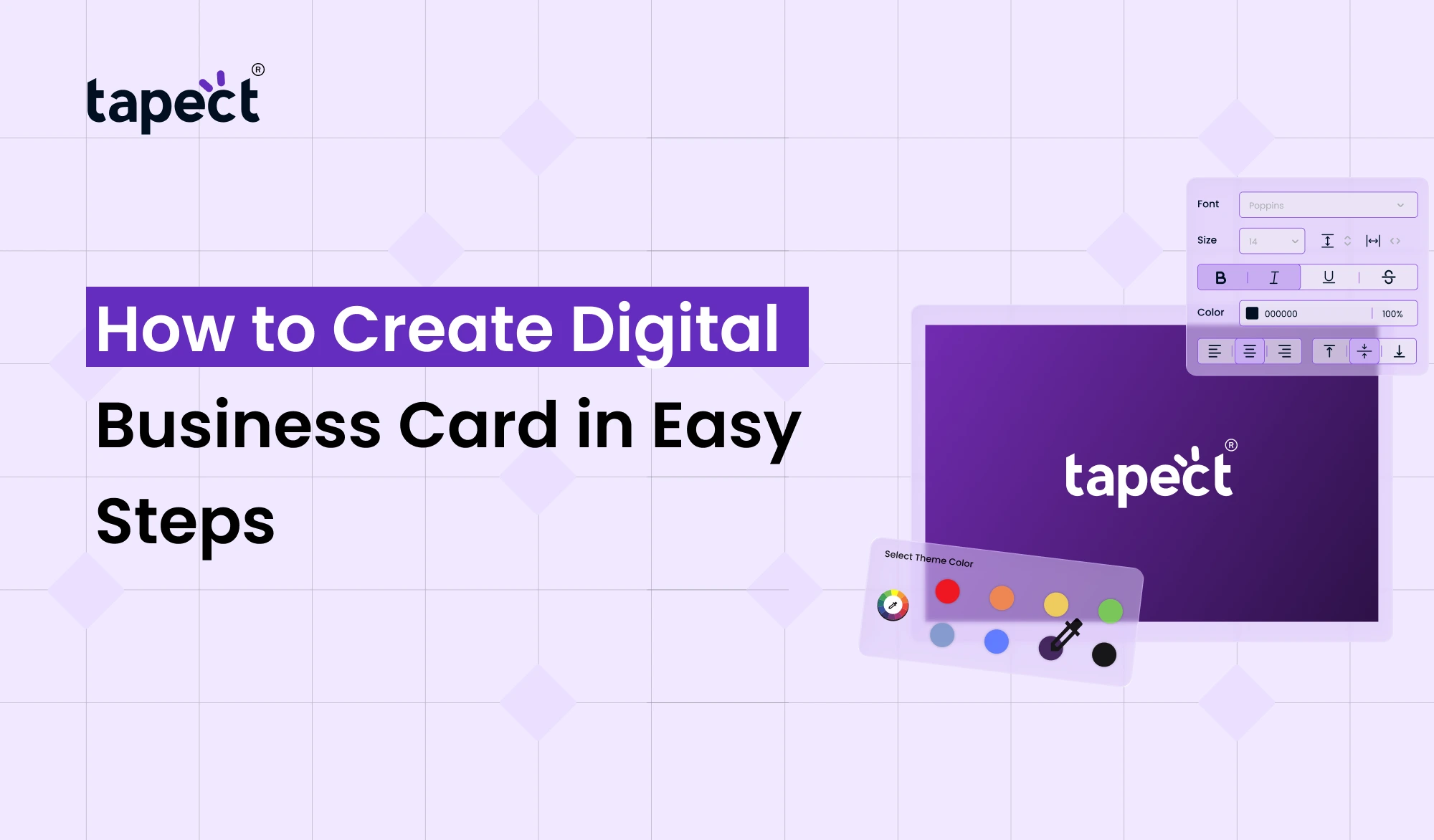
Step 5: Customize Your Card Design
Now match the card to your personal or business style.
You may select:
- Brand colors
- Fonts
- Buttons
- Background style
- Profile image
- Logo placement
Don’t overload the colours or the design. A clean layout allows visitors to quickly find your contact details.
A good Digital Visiting Card Maker needs to offer customisation, but not in a way that makes it tedious to do so.
Step 6: Add a QR Code
During face-to-face meetings, it’s much easier to share via a QR code.
When someone scans the code, it brings up your digital profile directly.
You can scan the QR code on:
- Printed business cards
- Brochures
- Product packaging
- Presentations
- Event displays
- Email signatures
It’s an easy bridge to extend your offline networking into your online networking.
Step 7: Consider NFC Sharing
If you want a quick contact-sharing solution, you can use a card embedded with NFC.
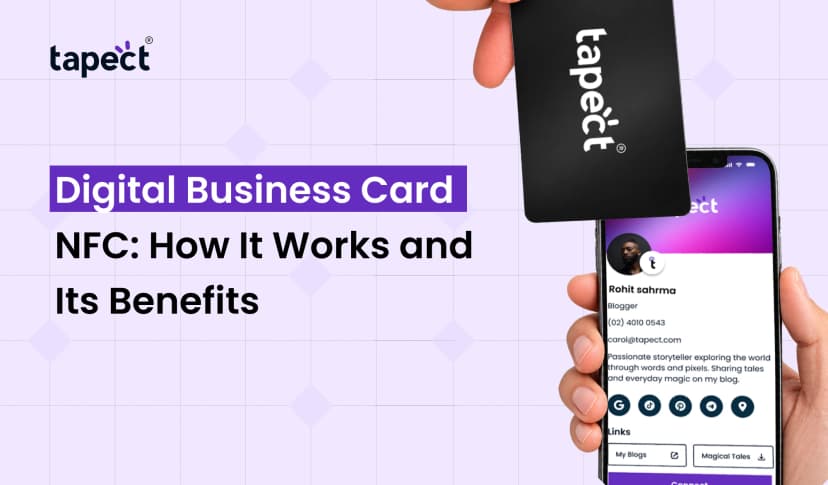
An NFC business card allows a person to tap the card on a compatible smartphone and open your digital profile.
You can combine NFC and QR sharing so people have more than one way to get your information.
Step 8: Test Your Digital Card
Test each button before you distribute your card.
Verify:
- Is this the right number?
- Does the email button function?
- Does the site come up?
- Social links working?
- Is it reading the QR code correctly?
- Does the card look good on a mobile?
- Can people save your contact easily?
Testing is just a couple minutes and can save you from embarrassing mistakes.
Step 9: Share Your Card
Once you have everything ready, it’s time to turn the Create Digital Business Card into a tool you can actually use every day.
Share the card using:
- Text messages
- QR codes
- NFC cards
- Your email signature
You can also add the card link to your social media profiles.
How to Use Your Digital Card for Networking
Making the card is just the start. It must be used regularly.
At a business event, instead of saying, “Here is my number,” you can just share your card link or ask the person to scan your QR code.
Also, you can use it for:
- Client meetings
- Conferences
- Job interviews
- Sales meetings
- Business events
- Networking sessions
- Online meetings
Create Digital Business Card is a reusable contact sharing tool that can follow you wherever you network.
Benefits of Using Tapect
Tapect makes your contact details shareable as a digital profile.
Some useful features are;
- Share contact details from a profile
- Link your social media accounts
- Share via QR code
- Share with NFC
- Update details without reprinting cards
- Share profile link
- Simplify networking with a smartphone
This can make sharing contact much easier for professionals who regularly attend meetings and events.
Digital Business Card vs Traditional Business Card
You give someone your basic information on a printed card. A digital card can do so much more.
A traditional card can have:
- Name
- Phone number
- Company
- Website
A digital card can also include:
- Social profiles
- Portfolio
- Videos
- Maps
- Contact-saving options
- Multiple links
This makes an Online Digital Business Card a good thing for people that want their professional information in one place.
Tips for Creating a Better Digital Card
Design a Digital Business Card With User Experience in Mind.
Follow these easy tips:
- Leave your basic info at the top.
- Choose a clear professional photo.
- Make it easy to find contact buttons.
- Keep your design simple.
- Verify all links before sharing.
- Add only useful information.
- Ensure that the page is mobile-friendly.
- If anything changes, update your details.
A good card takes a few seconds to convey its meaning.
FAQs
1. How to create a digital business card?
Or you can use a Digital Business Card Maker like Tapect Add your contact details, website, social profiles and other useful info, then personalise your profile and share its link or QR code.
2. How much does it cost to make a digital business card?
Some platforms have free plans or basic options. The features offered will vary from provider to provider so check what is included before you choose one.
3. What data should a digital business card contain?
Include your name, job title, company, phone number, email, website, and important social profiles. You can also add WhatsApp, portfolio, location and other business links.
4. Can I use my digital card with a QR code?
“Yeah. Scan a QR code, and your digital profile opens up. It’s good for meetings and events and print materials and networking.
5. Is coding necessary for creating a digital visiting card?
Yes. The Digital Visiting Card Maker allows you to create a card without writing any code. You just enter your info and select from the design options offered.
6. After creating my card, can I change it?
Yes, if the platform you have chosen allows editing. You can change your phone number, job title, website or social links without having to print a new card.
7. Are online digital business cards effective for small businesses?
Yes. An online digital business card is an easy way for small businesses to share contact details, websites, social profiles and other business information from one place.
Conclusion
Learning how to create a digital business card doesn’t have to be hard. With a good digital business card maker, you can add your information, customise your profile, connect your online channels, and start sharing in no time.
A digital card is ideal for professionals, freelancers, sales teams, entrepreneurs and business owners who want a simple way to stay in touch.
With Tapect you can Create a Digital Business Card that works with modern sharing methods such as link, QR codes and NFC. You don’t need to carry a bunch of printed cards; you can keep your professional information up-to-date on your smartphone.
Ready to Go Digital?
Make your next connection easier with Tapect’s Create Digital Business Card. Share your profile, let people save your details and have your professional info just a tap or scan away.
 26 Sept 2026
 business