QR codes are everywhere these days. They are found on menus, posters, product packaging, websites, payment displays and business cards. Scanning one will save you time as you don’t have to write a long website URL or contact number.
How to Scan a QR Code If you’re wondering how to scan a QR code, the good news is that you don’t normally need a special program. Most newer iPhones and Android phones can now scan QR codes straight using the camera.
In this simple instruction, we will show you how to scan QR codes on iPhone, Samsung and other Android phones. We’ll also address typical issues and how QR codes operate with a digital business card and nfc business card.
What Is a QR Code?
A QR code is a square code that contains information. You may scan it with your phone and it will open a website, show contact data, start a conversation, display a menu or take you to another page online.
Before you learn How to Scan a QR Code, it is useful to know what happens after scanning a QR Code. Your phone scans it and a notification or link pops up. You can tap the notification to open the information.
For example, a business owner can put a QR code on a card. The customer scans it and can instantly see the owner’s website or contact details.
How to Scan a QR Code on iPhone
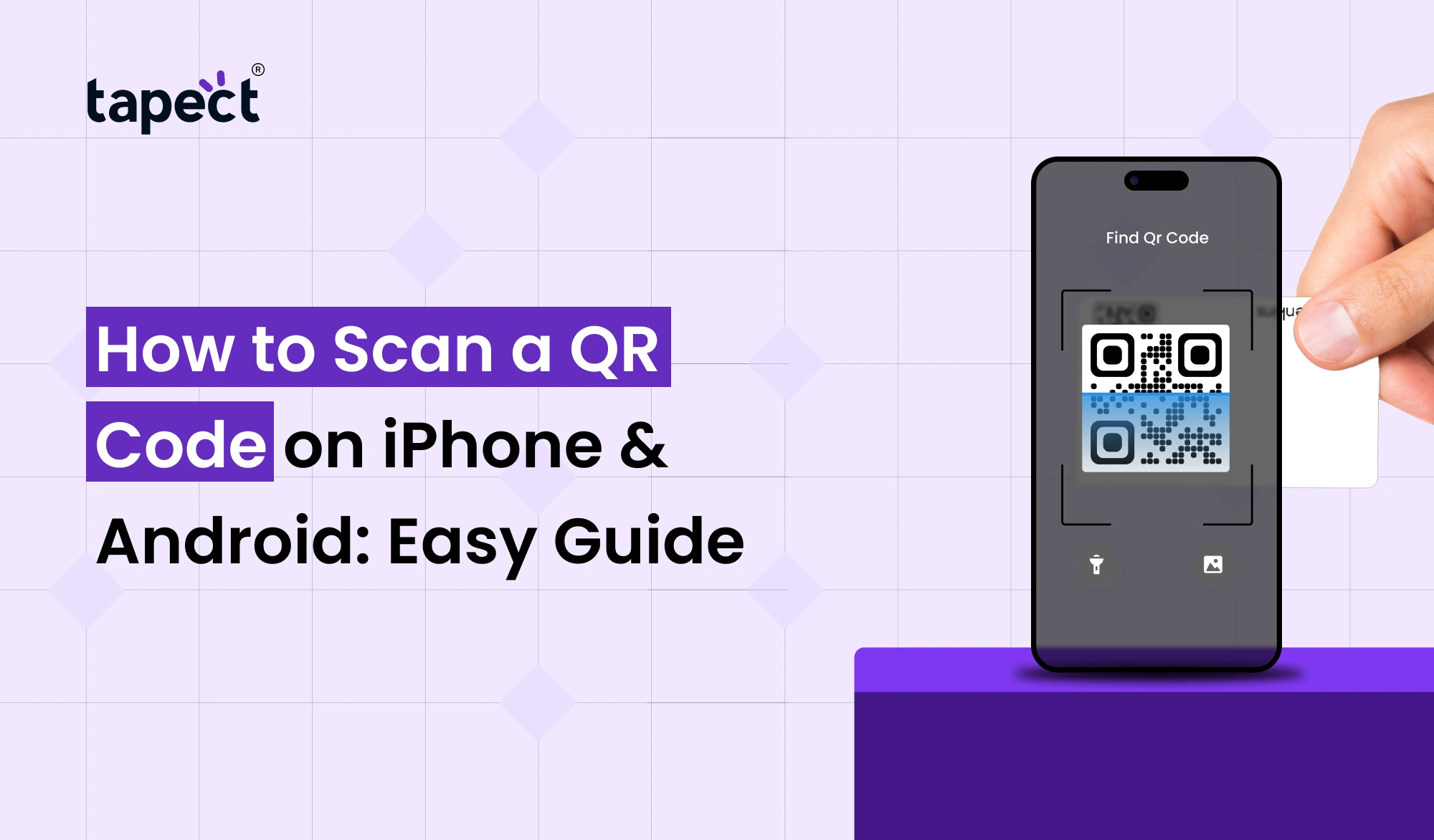
Scanning a QR code on an iPhone is fast. The Camera app is built-in to most recent generations of iPhone.
How do you scan a QR code?
- Open the Camera app.
- Hold your iPhone over the QR code.
- Keep the code inside the camera frame.
- Wait for a notification to appear.
- Tap the notification to open the link.
Don’t bother taking a picture. The camera can automatically detect the QR code.
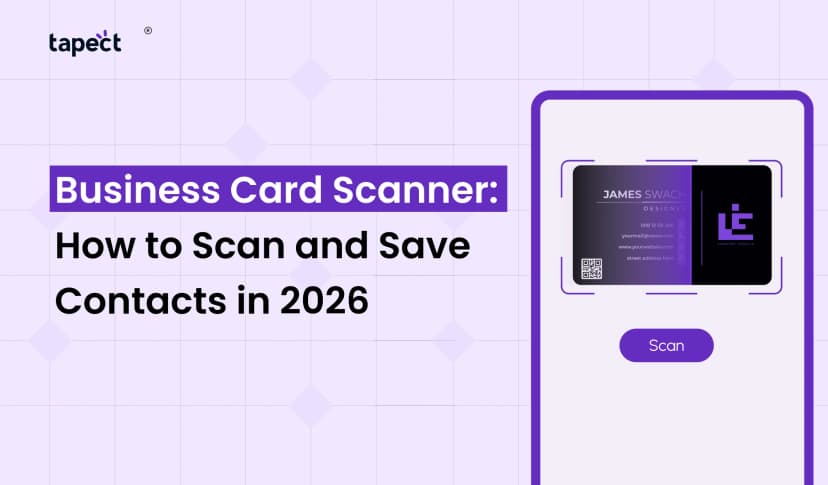
If you are wondering How to Scan a QR Code from a business card, just point your camera at the code. Make sure the whole code is in frame and your camera is on target.
How to Scan a QR Code on Android
Android phones might look vary based on the brand and software version. However, most modern devices can scan QR codes using the camera.
Open your Camera app and look at the code. Let the phone figure it out. You should see a link/notification on your screen. Tap it to go on.
Some phones might also include a QR code scanning feature in Quick Settings or via Google Lens.
If the standard camera doesn’t read the code, try Google Lens or your phone’s own scanner.
How to Scan QR Code in Samsung
It is also simple if you have a Samsung phone. Generally, you may scan codes directly from the Camera app.
Here is how to scan QR code in Samsung:
- Open the Camera app.
- Point the camera at the QR code.
- Keep the phone steady.
- Wait for the scanning notification.
- Tap the link that appears.
On some Samsung devices, you may need to activate QR scanning in the Camera settings.
If the camera doesn’t pick up the code, you can also utilise Google Lens.
Can You Use a QR Code Scanner?
Yes. Using a QR code scanner you may scan a QR code and go to the information it contains.
Many smartphones already have this feature incorporated into their cameras. So you may not even need to download another app.
A QR code reader operates in the same way. It reads the pattern and translates it into usable information like a website URL or contact page.
If you are using a third-party scanner, pick a reputable one. Watch out for strange apps that ask for too much access.
How Can I Scan a QR Code From a Photo?
Sometimes the QR code is already saved on your phone as a picture. You can’t point the camera at your own screen, but you can typically utilise Google Lens or a similar built-in capability.
Open the image and locate the Lens or scan option. Select it, and your phone should scan the QR code.
This is another helpful response to the topic of how can I scan a QR code when the code is not physically in front of you.
How to Scan QR Code Without a Separate App
There are many people that look up how to scan qr codes, as they think they require a specific program.
No, not most of the time.
The Camera app on a contemporary iPhone can scan QR codes. Many Android phones have the Camera app or Google Lens that can perform the same thing.
If your phone does not have the QR scan feature, then you can install a reputable QR code scanner from your phone’s official app store.
What Happens After You Scan a QR Code?
Scanning a code will normally bring up a notification or link on your phone. What occurs next depends on the content of the QR code.
For example, it might:
- Open a website
- Display a digital profile
- Save contact information
- Open WhatsApp
- Show a product page
- Open a payment page
- Display a business menu
That’s why QR codes are fantastic for marketing and networking.
Using QR Codes With a Business Card
A regular business card enhanced with a QR code can add functionality. Instead of asking someone to type your phone number, website or email address out by hand, you may have them scan your code.
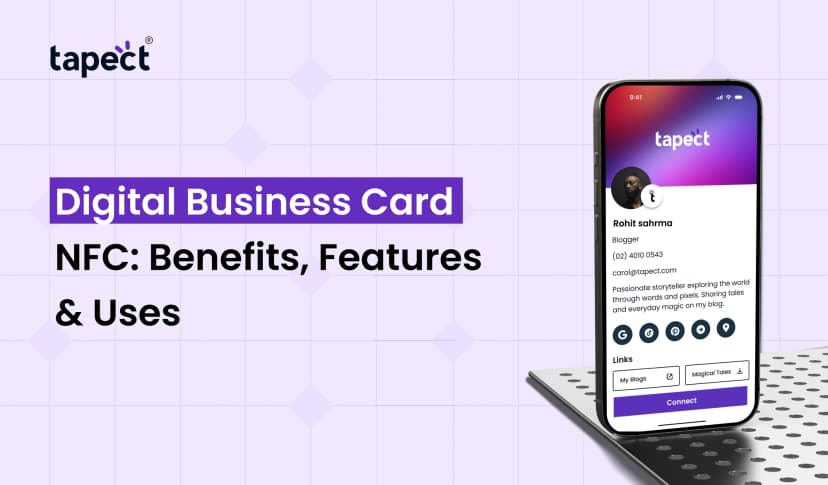
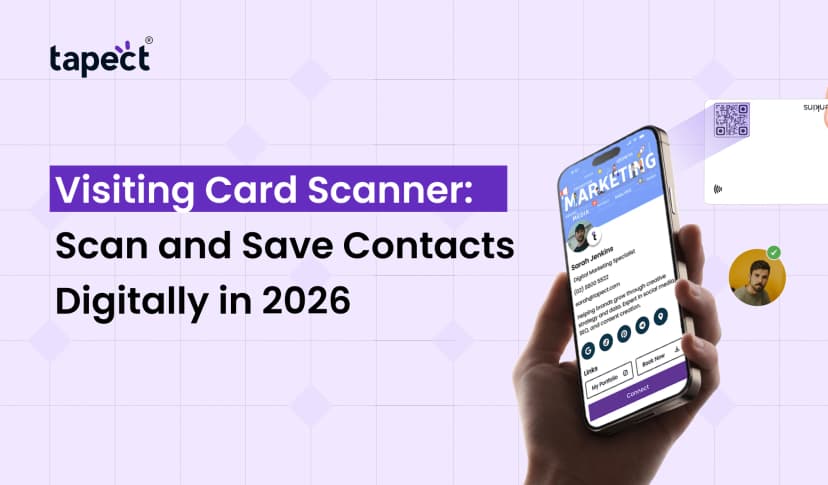
A digital business card can include your name, phone number, email, website, social profiles and other relevant information on a single page.
Anyone can scan the QR code and see the information instantaneously.
This makes How to Scan a QR Code a handy ability for anyone who utilises current business cards.
QR Code and NFC Business Card
Business information isn’t just shared via QR codes. An nfc business card allows customers to share information simply touching a connected smartphone against the card.
Both alternatives can go nicely together.
People have an easy scan option with a QR code and a short tap with a nfc business card to share. Either of these approaches makes networking easier for businesses.
If they don’t want to use NFC, they can just scan the QR code.
Hello QR Code: What Does It Mean?
Searching for QR scanning or digital networking technologies could lead you to queries like hello qr code or qr code hello.
These terms can mean QR contact sharing, greeting pages, or digital profiles, depending on the platform in question.
If you are using a QR code for networking, always check where the code is leading before you share it with your consumers.
What to Do If Your QR Code Does Not Scan
It doesn’t always work the first time with QR codes. Don’t be afraid. A few easy checks usually cure the problem.
Clean Your Camera
Dirt or fingerprints can make it tougher for your phone to detect the code.
Improve the Lighting
Try scanning in a brighter environment. No harsh glare on the QR code.
Hold Your Phone Steady
Keep your phone steady and make sure the entire code is displayed.
Move Closer or Farther Away
If the code is out of focus, move the camera closer or farther away until it is in focus.
Check the QR Code
QR codes that are broken or misprinted could not scan properly. Try using another device to determine if the problem is with your phone or with the code.
QR Code Safety Tips
QR codes are useful, but beware while scanning unfamiliar ones.
Check the address of the website before you click on a link. Do not submit passwords, bank account details or other private information on pages that look dubious.
Think before you open a QR code on some random sign or letter. Just like a regular online link, a QR code can bring you to the same types of websites.
Why QR Codes Are Useful for Businesses
QR codes provide clients with an easy way to act. Someone can scan a code and quickly be directed to your website, store your contact or discover more about your services.
Networking A digital business card with a QR code can help make exchanging contacts less tedious.
For professionals, this can mean less work in sharing information during meetings, events and conferences.
QR codes are easy to scan, but learning How to Scan a QR Code for business can make them even more valuable.
FAQs
1. How to scan a QR code on an iPhone?
Open the Camera app, point it at the QR code and press the notice that appears.
2. How do I scan a QR code on Android?
Tap the Camera app and point it at the code. If it doesn’t work, try Google Lens or the scanner built into your phone.
3. How to Scan QR Codes on Samsung Phones?
Open up the Samsung Camera app and point it at the code. Keep the code in sight. Wait for the scan notification.
4. Do I need a QR code reader?
Usually not. Most current phones come with QR code scanning embedded into the Camera app. If not, you can always utilise a reputable QR code reader.
5. Can a digital business card be opened with a QR code?
Yes. QR codes can link directly to a digital business card, showing consumers your contact details online.
6. Are QR codes superior than NFC business cards?
They do the same thing yet work differently. QR codes need a scan, a nfc business card needs a tap. Both provide additional opportunities for individuals to connect.
7. What if my QR code does not scan?
Clean the lens of your camera, check the lighting, keep your phone stable, and make sure your QR code is not damaged.
Conclusion
Now you know How to Scan QR Code on iPhone and Android. Most of the time, your phone’s Camera app will do the job. Samsung users can also scan codes with their built-in camera or using Google Lens.
QR codes are not just a quick way to access webpages. They can assist professionals communicate contact details, connect clients to businesses, and network.
If you have a digital business card, you may include a QR code that allows people to quickly access your contact details by scanning it. You may also mix QR technology with a nfc business card to provide a versatile networking experience.
Ready to Make Networking Easier?
Create your own modern digital profile with Tapect and make it simple for others to share your contact information. Provide a simple approach for individuals to connect with you instead of the old-fashioned paper cards.
Create your Tapect digital business card today and make your every connection count.
 08 Oct 2026
 business