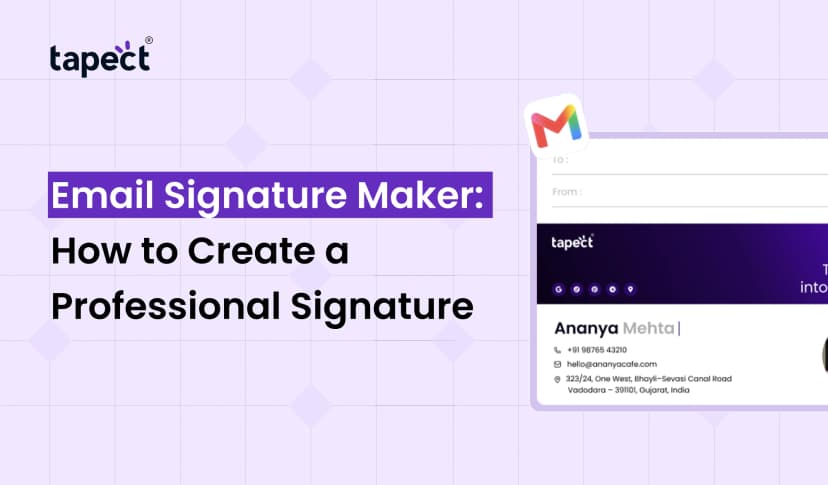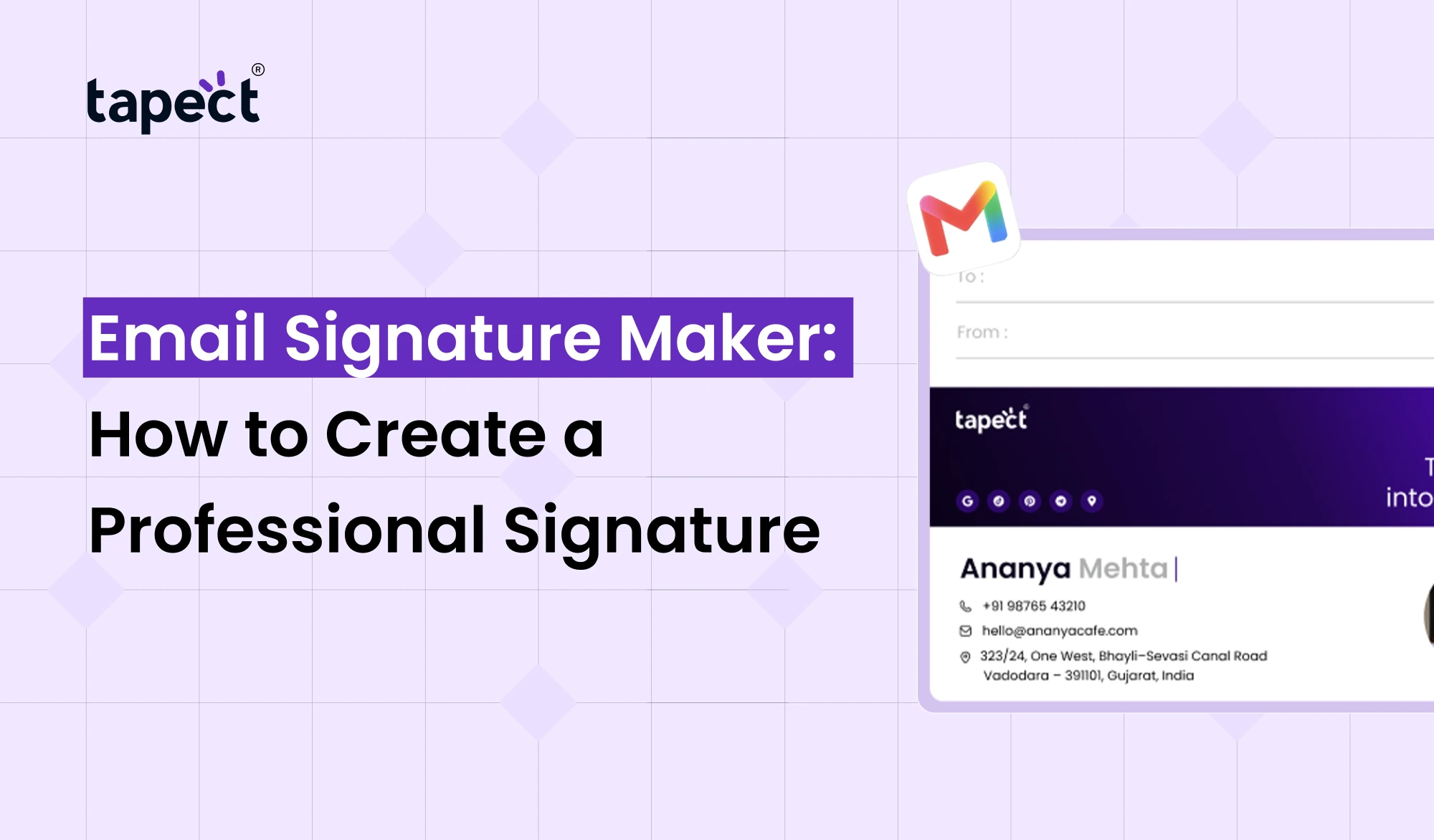
Every email you send is an opportunity to make a good impression. Your email ending matters, whether you’re emailing a customer, applying for a job, or reaching out to a business partner. A clean, professional signature lets people know who you are and how to contact you.
You can do this easily by using an Email Signature Maker. You don’t need design skills or coding knowledge to get a good looking signature. All you need is the right tool, and you can add your name, job title, contact details, website and social media links in minutes.
In this guide, we’ll walk you through how to create a professional email signature, what to include, and how Tapect can help you make your business communication more effective.
What Is an Email Signature Maker?
An Email Signature Maker is an online tool for creating a signature for your emails. You are able to create a signature once and then add it automatically to your emails instead of the end of each message you send.
A professional signature generally includes:
- Your full name
- Your job title and company name
- Your phone number and email address
- Your company website
- Links to your social media profiles
- Your company logo, if needed
An email signature generator offers you pre-made templates, colours, and font choices. Pick a template that fits your business style without spending hours making one yourself.
Why Do You Need a Professional Email Signature?
A good Email Signature Maker is more than just a display of your contact information. It helps people remember you and makes it easier for them to take the next step.
1. Build Trust With Every Email
Including your name, position, company and contact details in an email helps the recipient understand who is contacting them. This is useful for freelancers, sales teams, business owners and job seekers.
2. Make Contact Easy
People don’t need to hunt down your phone number or website. A well designed signature gives them the information they need in one place.
3. Promote Your Business
You may add your website, product page or social media profile to your signature. Each email is also a way for people to learn about your business.
4. Keep Your Brand Consistent
When everyone in your company is using the same style, your emails look more orderly. A signature design generator can help you keep fonts, colours and layouts consistent across your team.
How to Create a Professional Signature With an Email Signature Maker
How to make a signature is easy if you follow a few simple steps.
Step 1: Choose a Reliable Tool
Select an Email Signature Maker that offers easy editing features and layouts that are compatible with your email platform.
Look for things such as:
- Ready-made templates
- Custom colors and fonts
- Clickable contact details
- Website and social media links
- Mobile-friendly layouts
Choose a tool that makes editing easy, even if you’ve never designed an email signature before.
Step 2: Add Your Contact Information
Please enter your name, title, company, phone and website. Read all the details before you go on.
For example, an SEO executive may follow this format:
- Jayesh Makwana
SEO Executive | Tapect
Website: www.tapect.in
Email: yourname@company.com
Phone: Your business contact number
I’m working on this project. You don’t need to list every way to contact you.
Step 3: Select a Clean Design
A professional signature that doesn’t take up too much space.
Here are a few simple design tips:
- Choose one or two easy-to-read fonts.
- Use your brand colors in small amounts.
- Keep the layout clean and organized.
- Avoid large images and too many decorative elements.
- Make sure the text is easy to read on a mobile phone.
A good email signature creator can help you organise your information so that your readers can easily find the important details.
Step 4: Add Useful Links
People can reach out to you by clicking on the links rather than having to copy-paste the details.
Add links to your website, LinkedIn profile, portfolio, booking page or business contact page. If you want to promote a special offer, you can add a short call to action.
For example, instead of a long web address, use text such as “View Our Services” or “Book a Free Consultation.”
Step 5: Preview and Test Your Signature
Send yourself a test email before you start using your signature on your everyday emails.
- All links open the correct pages.
- Your contact details are correct.
- The signature looks good on desktop and mobile.
- The text does not break into strange lines.
- Images, if used, display properly.
A quick test can prevent small errors from making your business emails look unprofessional.
What Should You Avoid in an Email Signature?
A signature, however useful, can be a distraction if it contains too much information.
Common mistakes to avoid:
- Adding long quotes or personal messages.
- Using too many colors and font styles.
- Including several large promotional banners.
- Adding social media links that are no longer active.
- Using images for all your contact information.
- Adding unnecessary personal details.
- Forgetting to update your job title or phone number.
Keep your signature short and useful. Your e-mail message should be the primary focus.
How Tapect Can Help You Improve Business Networking
Tapect helps professionals share their business information through NFC-enabled products and digital business cards. An email signature helps people contact you by email, and a digital business card can help you share your contact details during meetings, events and everyday networking.
Use both tools together to create a more unified business experience.
Here are some practical ideas:
- Add your Tapect digital business card link to your email signature.
- Let customers open your contact profile directly from your email.
- Share your business details at meetings using an NFC business card.
- Keep your website and professional contact information easy to find.
- Use consistent branding across your email signature and digital profile.
So, customers have more than one way of contacting your business.
Tips to Make Your Email Signature More Effective
If you want your signature to help your business goals, focus on what your readers need most.
Keep It Short
Include only the details that help people identify you and contact you. A short signature is easier to read and works better on small screens.
Add One Clear Call to Action
Select one action you want your readers to take. It could be visiting your website, booking a meeting or looking at your portfolio.
Match Your Brand
Copy your website’s colours and logo style. It helps people to identify your business on different channels.
Update It Regularly
Update your signature when your job title, phone number, website, or company information changes. A quick look every few months can keep you from outdated information.
Make It Easy to Use
Try out your signature in your most used email apps. Different email platforms may interpret things differently, so be sure to double check the end result before you roll it out to your team.
Frequently Asked Questions
1. Which Email Signature Generator is the best?
The best tool is one that has clean templates, easy editing, clickable links, and works with your email platform. Pick the one that suits your needs and budget.
2. How to create a free email signature?
Yes. Lots of tools offer free templates or free features. Some charge for advanced design, team management, or for additional customisation options.
3. What should a professional email signature have?
It should usually include your name, job title, company, contact information and website. Here’s a related social media link or a short call to action.
4. Can I use my email signature on Gmail, Outlook?
Yes. Many signature tools are compatible with Gmail and Outlook, but their setup can differ. Check the tool’s instructions and test your signature once you add it.
5. Is an email signature the same thing as an electronic signature?
No. An email signature is the professional information you include at the bottom of an email. An electronic signature is a method of signing documents or approving agreements electronically.
6. Can I add my Tapect digital business card to the signature of my emails?
Yes. Add a clickable link to your Tapect digital business card, that allows recipients to view your profile and contact details easily.
Conclusion
A professional email signature is a small detail that can make a big difference in business communication. It helps people to identify you, to find your contact details and to learn more about what you do.
It’s easier if you use an Email Signature Maker, you can choose a layout, add your details and customise the design without advanced skills. Use a simple signature. Check all your links. Change your info as needed.
Want to improve the way you share your business details?
Discover Tapect’s digital business card solutions and make it easy for customers, colleagues and business partners to connect with you. Visit Tapect.in to share your professional profile in a smarter way.
 19 Oct 2026
 business